
Greenshot for Windows
Capture a screen region, highlight what matters, and save a clear screenshot. Windows setup, keyboard shortcuts and troubleshooting in one practical library.
Stable version history: 1.3.328 (Oct 19, 2026). Verify file source and release channel before running any installer.
What is Greenshot?
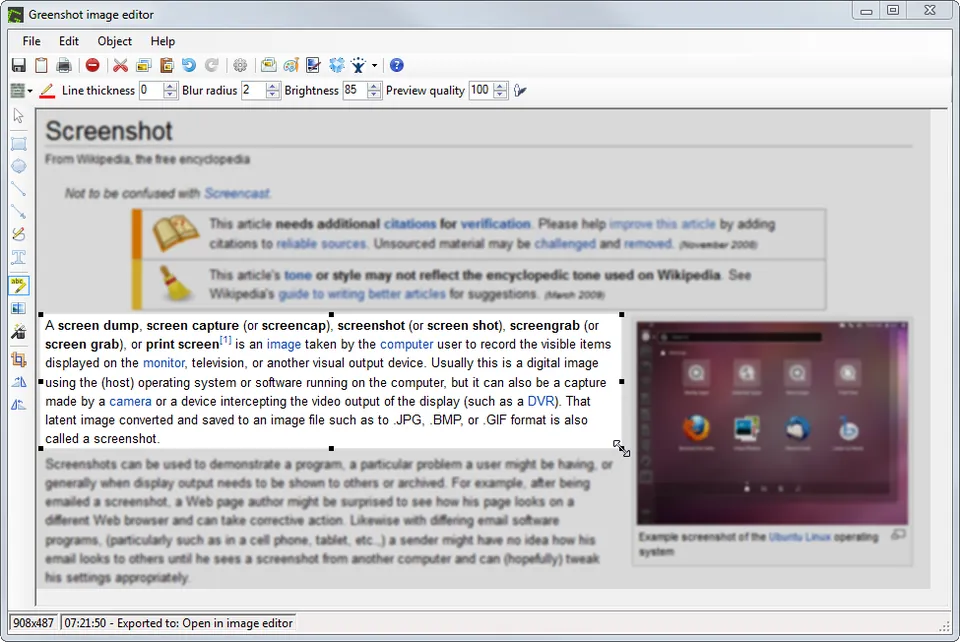
Greenshot is a lightweight, free and open-source screenshot application for Windows. It supports region, window and full-screen capture, plus an image editor for arrows, text, highlighting and hiding sensitive information. It can export to a local file or the clipboard.
Use the Windows download guide to identify a stable release; start with the region capture tutorial to create a first screenshot.
Find the right screenshot workflow
Quick answers supported by task-focused instructions and visible verification checks.
Getting started
Installation, portable builds and stable releases.
Explore guides →Capture modes
Region, window, fullscreen and multi-monitor captures.
Explore guides →Hotkeys
Print Screen, remapping and Windows conflicts.
Explore guides →Editing and annotation
Arrows, labels, highlights, crop and privacy redaction.
Explore guides →Export and saving
PNG, clipboard, file naming and destination options.
Explore guides →Troubleshooting
Capture failures, tray icon, scaling and saving issues.
Explore guides →Take your first Greenshot screenshot
- Install and start Greenshot. Locate the green tray icon next to the Windows clock.
- Capture a region. Press Print Screen, drag the rectangular area and release.
- Choose a destination. Open the editor or select Save As for a PNG file.
- Inspect your output. Open the image at 100% size and check text, annotations and privacy.
Fast Greenshot answers
What is Greenshot?
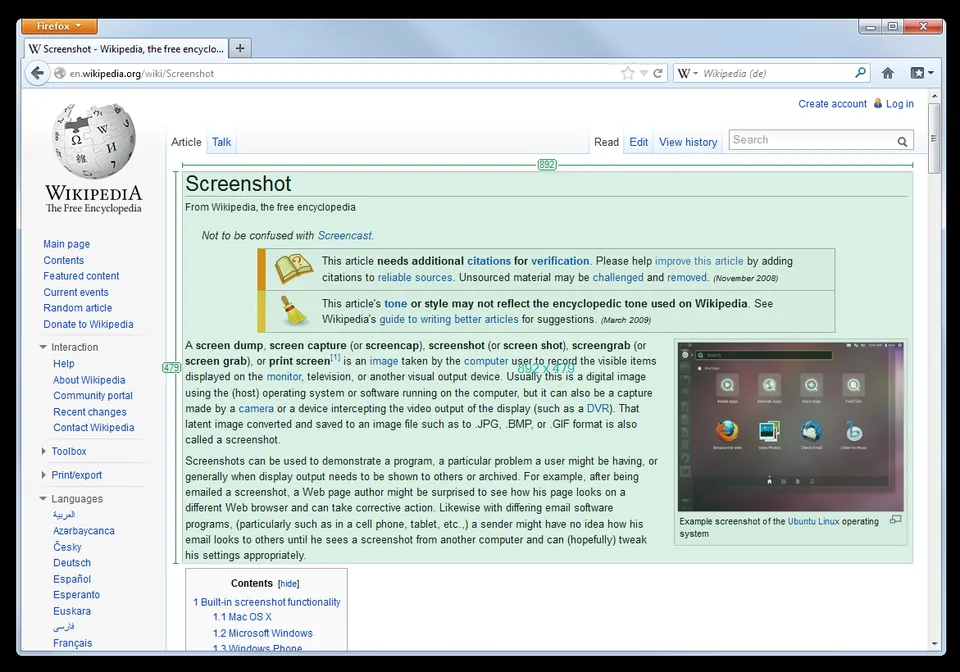
Greenshot is an open-source screenshot utility for Windows that captures regions, windows and screens, then annotates or exports the images.
Is Greenshot free for Windows?
The Windows project is free and open source. Some download services request contributions; inspect the release source and terms.
Which Greenshot version should I choose?
Project version history lists stable 1.3.328 dated October 19, 2026. The downloads landing page may still show 1.3.315; avoid confusing continuous experimental builds with stable releases.
How do I capture a region?
Start Greenshot, press Print Screen or choose Capture region from the tray menu, drag a rectangle, then select where to save the image.
Ready to capture and annotate?
Windows download notes, a full guide library and troubleshooting resources are available below.